
By default, Chrome's history stores only page titles and URLs, so it can't find a page by what it said. To search browsing history by content, you need a tool that saved the page text when you read it. Chrome's opt-in AI history search does that, and so do AI browser history search extensions, each with different limits. The sections below cover the built-in fallbacks first, then which option fits in Chrome, Edge, and other browsers.
Why doesn't your browser history find the page you remember?
By default, built-in history records each page's title and address, and none of the text you read there. Microsoft Edge works the same way. Its history holds "the URLs of sites you've visited, and the dates and times of each visit," per Microsoft's Edge support page.
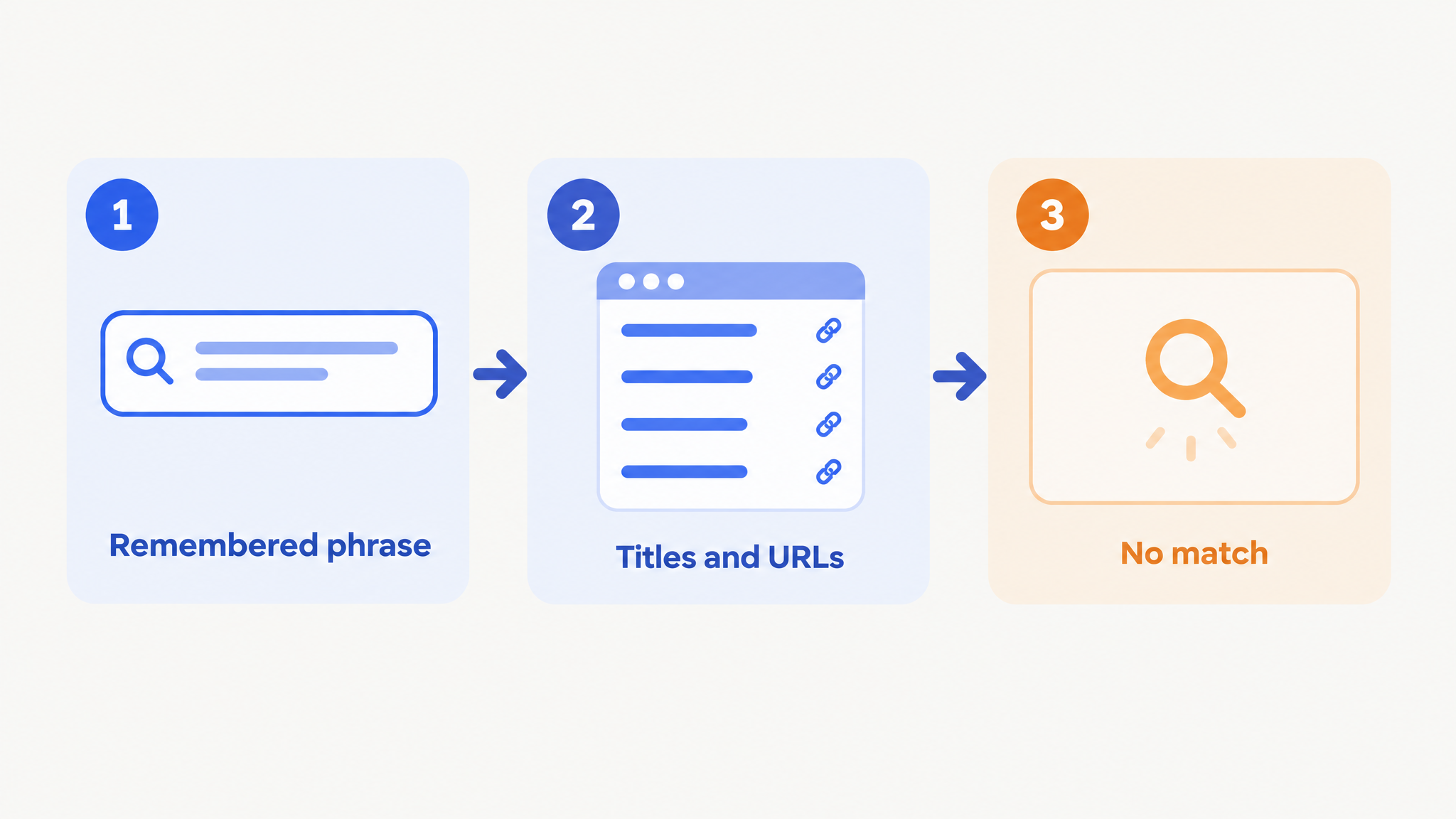
The gap shows up in ordinary work. A product manager remembers a competitor's pricing table from last Tuesday, but not the page's headline. A developer remembers the error message a Stack Overflow answer fixed, not the thread's title. Neither phrase sits in a title or URL. The search comes back empty, even though the page is in your history.
How do you search Chrome history with the built-in tools?
Chrome's own tools work when you can guess a word from the page's title or its site name. Chrome Help's guide to browsing history describes these routes:
Open the History page: select More at the top right, then History, then History again.
Type a word you expect in the title or address into the Search bar.
Or type
@historyin the address bar, press Tab or Space, then enter keywords and pick the page from the list.Open the By group tab, which sorts your browsing and search history into groups.
Try the site's name, a product name or a word likely to appear in the headline. These routes still match against titles and URLs. If all you recall is a sentence from the middle of the article, no keyword trick will surface it.
Can Chrome's AI history search find a page by its content?
Yes, if you're in the US, use Chrome in English and switched the feature on before you visited the page. Chrome's AI history search is opt-in. Once it's on, Chrome stores the page contents of sites you visit from then on, saved and encrypted on your device. You can then search your history in everyday language.
For a US reader who browses only in Chrome, that is a fair first step. It's built into the browser, and the page text stays on the device.
The limits decide it for everyone else. Outside the US, or with Chrome set to another language, the feature isn't available. Pages you read before turning it on have no stored content to search. And it covers Chrome alone, so a page you read in Firefox or Edge isn't in it. For a closer look, see how AI browser history search compares with Chrome's.
How does Datarag search what was on the page?
Datarag is a browser extension that saves and indexes everything you read online, so you can search your full browsing history in plain language — or ask an AI about it. It indexes the full content of every page you read, once the page has fully loaded.
Your browser history knows the URL. Datarag knows what was on the page. You type what you remember in your own words, such as "study linking sleep to exam scores." The page comes back without you knowing its title. A student rebuilding sources for a thesis can find a paper they skimmed in September that way.
Datarag keeps your browsing history permanently and syncs it across browsers and devices. The pricing page you read on your laptop is searchable from your work machine, months later.
When you want an answer instead of a link, Datarag's AI chat answers using the pages you've read. Pin one page, or several, to scope your questions to exactly those items.
Some pages are left out on purpose. Datarag never captures incognito browsing. It automatically excludes adult sites, gambling pages, and social media networks from indexing. You can toggle indexing off at any time. Your data is encrypted with a key derived from your PIN, which never leaves your device. Datarag's security page covers the rest.
How do you search Edge browsing history by what a page said?
Edge's history, as Microsoft describes it, keeps no page text to search. In Edge, the route to content search is an extension. Datarag works on Edge, Brave, Arc, and other Chromium-based browsers, and on Mozilla Firefox.
Cross-browser sync matters most for people who switch browsers. Picture a developer who reads docs in Firefox at home and works in Edge at the office. Pages from both browsers are searchable from either one. The comparison of Datarag and Chrome history shows the same gap side by side for Chrome.
Which way of finding a page fits you?
The main difference is whether the tool saved the page text when you read it.
Stay with Chrome's tools if you usually recall a title word or the site. Chrome's AI history search fits a US reader in English Chrome who turned it on early. It also suits anyone who wants page text kept on the device. Other extensions index page text too: History Content Search describes itself in its listing as fully local semantic search. Datarag fits readers whose reading spreads across browsers and devices, or who need pages older than a few months.
What makes the page easy to find next time?
A page is easy to find by content only if its text was indexed when you read it. Title search will keep working for pages you can name. For the ones you can't, Datarag costs $2.99 per month after a 30-day free trial, and no credit card is required. Add to Chrome.
Frequently asked questions
Can Gemini in Chrome search my browsing history?
Yes, with conditions. Gemini in Chrome can search your Chrome history once Gemini in Chrome is turned on, you're signed in to Chrome with a personal Google Account, and your history is synced. It doesn't work in Incognito or with work or school accounts, and it's rolling out gradually on Chromebook Plus, Mac, and Windows.
Why can't I find a website I visited a few months ago?
Chrome keeps roughly 90 days of browsing history and deletes older entries automatically. A page you visited before that window is gone from the History page, whatever you search for. Datarag keeps your browsing history permanently, so older pages stay searchable.
Can I search YouTube videos I watched by what was said?
Yes, with Datarag. It indexes YouTube subtitles, so you can find a video by describing something the speaker said. Browser history alone only has the video's title and URL to match.